

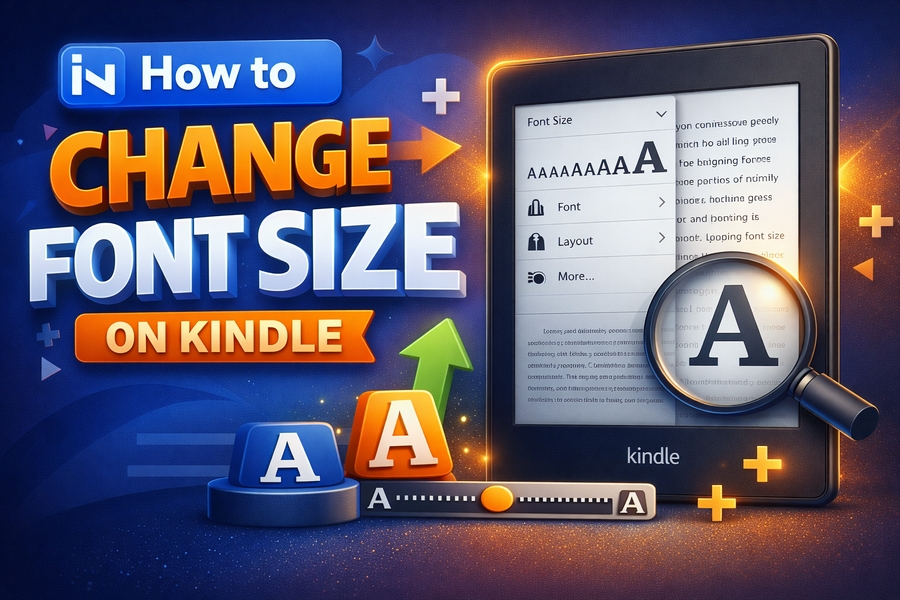
Reading on a Kindle is a fantastic way to enjoy your favorite books, but sometimes, adjusting the font size is necessary to enhance the reading experience. Whether you need a larger font for better readability or prefer a smaller font for more content on the screen, adjusting the font size on your Kindle is straightforward.
This guide will walk you through the process step by step, helping you personalize your Kindle Paperwhite or other Kindle devices for maximum comfort.
Understanding the Kindle Font Settings
Before diving into the steps of changing the font size, it’s essential to understand how the Kindle’s font settings work. The Kindle allows users to adjust not only the size of the text but also its style, spacing, and margins. This customization ensures that you can create a reading experience tailored to your preferences.
The font size on Kindle is adjustable via the device’s “Aa” menu, which provides multiple options to enhance your reading experience. You can easily increase or decrease the font size with a few simple steps. The font styles available include popular options such as Bookerly, Amazon’s own font, and others like Caecilia and Helvetica. This flexibility helps you create the ideal reading setup.
For example, you can change the font size by tapping the “Aa” button located at the top of your Kindle screen, then adjusting the slider to make the text larger or smaller. By experimenting with these settings, you can find the most comfortable font size for your eyes.
The process of adjusting the font settings is simple and highly effective. You can learn more about different text customization techniques through the guide on how to make text invisible, which provides a deeper understanding of adjusting text visibility and readability.
Adjusting Font Size on Kindle Paperwhite
Changing the font size on a Kindle Paperwhite is quick and simple. Once you’ve opened a book, follow these steps:
- Tap the screen to bring up the top menu bar.
- Select the “Aa” icon from the top-right corner.
- In the menu that appears, you’ll see an option to adjust the font size.
- Use the slider to increase or decrease the text size to your preference.
This simple adjustment allows you to make the text larger for easier reading or smaller for more content per page. It’s a feature that is especially useful for those with vision impairments or for users who simply want a more comfortable reading experience.
Remember, changing the font size affects only the book you are currently reading. You’ll need to adjust the settings individually for each book, although Kindle will remember your preferences for future sessions.
If you need more guidance on this, you can refer to other helpful tips like how to customize your Kindle device further by adjusting fonts and spacing. Adjusting these features can make a world of difference in your reading comfort. You can check out more tips like these through Invisible text generator for easy and convenient ways to personalize your text.
Adjusting Font Size in Kindle App for iOS and Android
For those using the Kindle app on iOS or Android, adjusting the font size is just as easy as on the Paperwhite device. The steps to change the font size are almost identical across platforms. Here’s how you can do it:
- Open your Kindle app on your iPhone or Android device.
- Tap the screen to display the options at the top.
- Tap the “Aa” button to bring up the font settings.
- Adjust the slider to choose the desired font size.
This method is convenient for users who switch between their Kindle e-reader and mobile devices. By syncing your Kindle across multiple devices, you can enjoy a seamless reading experience with your preferred font settings.
Changing Font Size in Dictionaries on Kindle
While adjusting the font size for books is straightforward, many Kindle users don’t realize that they can also change the font size in the dictionaries they use. This feature can be beneficial for those who rely on dictionaries frequently while reading. By adjusting the font size in your Kindle dictionary, you can enhance readability when looking up words.
To change the font size in a Kindle dictionary, follow these steps:
- Open the Kindle dictionary and select a word you want to look up.
- Once the definition is displayed, tap the “Aa” button at the top.
- Adjust the font size slider as needed.
The process for changing font size in dictionaries works similarly to changing it in books, ensuring that the experience remains consistent across your reading materials.
Tips for Customizing Your Kindle’s Reading Experience
In addition to adjusting the font size, Kindle offers various other customization options to enhance your reading experience. You can change the background color, adjust line spacing, and even select different fonts. These settings allow you to create a personalized reading environment that suits your eyes and reading style.
For example, if you prefer reading at night, you can switch to a dark theme that uses white text on a black background. This reduces eye strain and provides a more comfortable reading experience in low-light settings. Similarly, adjusting line spacing can make the text easier to follow and reduce the feeling of clutter on the page.
You can also experiment with the “Page Refresh” feature, which ensures that each page is updated for a smoother reading experience.
Benefits of Changing Font Size on Kindle
The ability to change the font size on Kindle isn’t just about comfort; it’s also about accessibility. For individuals with visual impairments, adjusting the font size can make all the difference. Larger text ensures that users can read books without straining their eyes. Additionally, some users simply prefer smaller text to fit more content on each page, making it a valuable tool for personalizing your Kindle experience.
Using features like font size adjustment and other display settings can also reduce fatigue during long reading sessions, helping you read for longer periods without discomfort. You can experiment with different fonts, spacing, and line heights to customize the experience to your needs.
Advanced Settings for Kindle Customization
If you’re looking to go beyond just changing the font size, there are other advanced settings that can enhance your Kindle’s functionality. These include options to adjust the margins, change the text alignment, and even set your Kindle to automatically adjust the screen brightness based on the ambient light in the room.
With these advanced settings, you can make sure that your Kindle is tailored to your reading needs. This customization allows for a highly personalized experience, ensuring that your Kindle is as comfortable and functional as possible.
For additional information on how to adjust and optimize your Kindle’s settings, visit the following helpful guide on font customization and text readability.
Conclusion
Changing the font size on your Kindle is a simple yet powerful way to customize your reading experience. Whether you’re adjusting the size for comfort, accessibility, or just personal preference, the Kindle offers several options to help you read more easily. By exploring the various customization settings available, you can create an optimal reading environment for yourself.
You can also learn more about other useful tools like the Invisible text generator to customize your text on different platforms. By understanding the full scope of Kindle’s customization features, you’ll be able to enjoy your eBooks with ease and comfort.